For remote workers, a PG room is not just a place to sleep. It is also a workspace for video meetings, file uploads, cloud applications and daily communication. A listing that says “Wi-Fi available” does not prove that the connection will work reliably when you need it.
Before moving in, test the internet from the actual room and desk you plan to use. Check download and upload speeds, latency, signal strength and performance during busy hours. These practical checks will help you assess Wi-Fi in PG for work from home and avoid relying on vague promises.
Key Takeaways
- Test Wi-Fi inside your assigned room, not only near the router.
- Check download, upload, ping and connection stability.
- Repeat tests during evening peak hours and busy periods.
- Ask how many residents share the connection and whether power backup is available.
- Confirm a backup option before depending on the PG Wi-Fi for work.
1. Test Wi-Fi Speed in the Actual Room
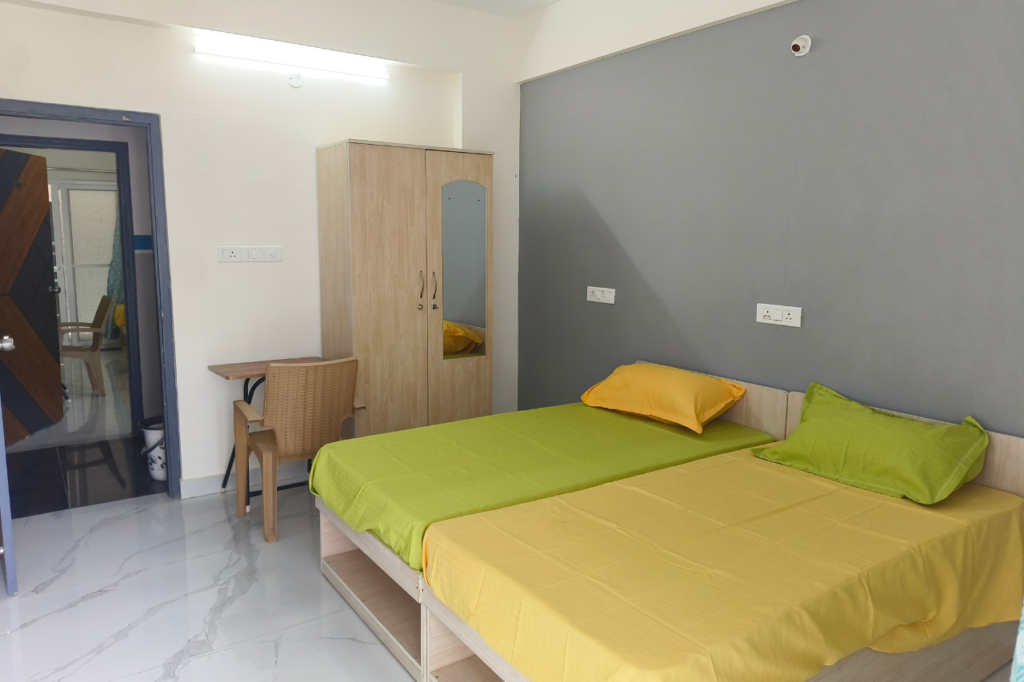
The most useful Wi-Fi test is performed where you will actually work. Connect your laptop or phone to the resident network, sit at your intended desk and run more than one test. A result beside the router may not reflect the connection available inside your room.
Check these four measurements
- Download speed: How quickly your device receives data. It affects loading websites, downloading files and streaming meetings.
- Upload speed: How quickly you send data. It matters for video calls, sharing screens and uploading work files.
- Ping or latency: The time data takes to travel to a server and back. Lower latency generally makes live conversations feel more responsive.
- Jitter and packet loss: Variation in latency and missing data packets can cause choppy audio, frozen video or unstable calls.
Use a reputable speed-test service, such as TRAI MySpeed, and note the results. Do not judge the connection from one test alone.
2. Test the Connection During Peak Hours
Wi-Fi may slow down when many residents return and stream, game or make video calls. Test at different times, especially in the evening, and ask whether the network is shared across the whole building, one floor or a smaller group of rooms.
Repeat the test
- Run a test during a quieter period.
- Repeat it during the evening or another busy period.
- Test from the same location and device.
- Compare download, upload and latency results.
- Ask whether performance changes when more residents are online.
For example, if your work calls happen after 7 PM, an evening test is more useful than a single morning result. Ask current residents whether they experience regular slowdowns during their usual working hours.
3. Check Wi-Fi Signal Strength and Router Placement
The broadband plan is only one factor. Router placement, walls, interference and distance can weaken the signal inside a room. Walk around with your device, check the signal at your intended desk and notice whether the connection drops when doors are closed.
What to inspect
- Check the signal near your work desk.
- Test from the far side of the room.
- Notice whether thick walls or closed doors weaken the signal.
- Ask where the router or access point is located.
- Check whether the property uses additional access points for distant rooms.
If the signal is weak, ask whether management can improve router placement or provide another access point. Do not assume that a high advertised broadband speed will reach every room equally.
4. Ask How Many Residents Share the Internet
A shared network supports the online activity of multiple residents. Ask how many people use the connection, whether floors have separate networks and whether usage limits apply. These details help you understand network demand and possible slowdowns during busy periods.
Questions to ask management
- Is the Wi-Fi shared by the entire building?
- Is there a separate access point on each floor?
- Are there data limits or fair-use restrictions?
- Is the network available in bedrooms and common workspaces?
- Who should residents contact when the internet stops working?
Also ask whether the property has a process for reporting outages. A clear support contact is useful when you have a meeting or deadline.
5. Check Whether the Internet Supports Your Work Tasks
Remote-work tasks place different demands on an internet connection. Email may work on a modest connection, while video meetings, large uploads and remote desktop tools need consistent performance. Test your usual tasks instead of relying only on a speed-test number.
Try a short work simulation
- Join a video call and check audio and video quality.
- Turn on screen sharing.
- Upload a sample work file to your usual cloud service.
- Open the websites and tools you use daily.
- Keep the connection running for several minutes to notice interruptions.
If possible, test using your own laptop and headset. A phone speed test alone cannot confirm that your work setup will perform well.
6. Confirm Power Backup and a Backup Internet Option
A broadband connection is useless if a power cut switches off the router. Ask whether network equipment remains powered during an outage, how residents are informed about service problems and what backup option is available for urgent meetings and deadlines.
Prepare a backup plan
- Check whether the PG has power backup for networking equipment.
- Keep mobile data available as a fallback.
- Confirm that your mobile network works inside the room.
- Ask how outages are reported and resolved.
- Save important work locally when practical.
Do not assume that building power backup automatically keeps the Wi-Fi running. Confirm that the router and relevant network equipment are connected to backup power.
7. Check Network Security Before Connecting Work Devices
A reliable connection should also be secure. Ask whether resident Wi-Fi is password-protected and how access is managed. Follow your employer’s device-security rules and avoid sending confidential files over unknown or unsecured networks. Ask management about guest access too, if available.
Follow these precautions:
- Use only the network provided by management.
- Do not share the Wi-Fi password publicly.
- Keep devices and applications updated.
- Use your employer-approved VPN.
- Avoid accessing sensitive work systems on an unfamiliar open network.
If the PG offers a separate resident or workspace network, ask how access is controlled.
8. Wi-Fi in PG for Work from Home Checklist
A quick inspection helps you compare properties beyond claims such as “high-speed internet.” When comparing the best colive pg in bangalore, apply the same checks to each property. Record test results and get promised improvements in writing before paying a deposit.
What to check | What to confirm |
Room-level speed | Test at your intended workspace |
Upload and download | Record both results |
Latency and stability | Repeat tests at different times |
Shared usage | Ask how many residents use the network |
Router coverage | Check signal across the room |
Power backup | Confirm router backup |
Support | Get the contact for reporting outages |
Mobile fallback | Test your own mobile network |
9. Check Wi-Fi Facilities at Sri Ram PG Colive
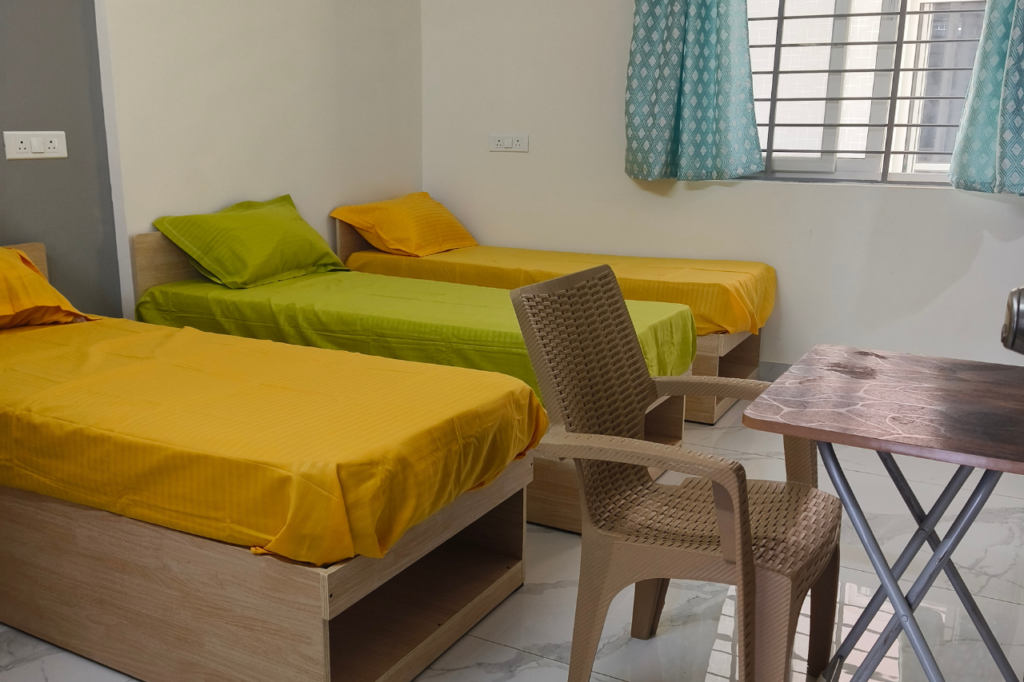
Sri Ram PG Colive is in Marathahalli, Bengaluru. Its website lists internet or high-speed Wi-Fi, furnished rooms, work desks and workspaces among its amenities. These facilities are relevant to remote workers, but the actual connection quality should be tested during a visit.
If you are comparing the best colive pg in bangalore, do not rely on the amenity list alone. Visit the property, test the connection from the room you may occupy, ask how the network is shared and confirm power backup and support arrangements with management.
FAQs
1. What should I check in Wi-Fi before moving into a PG?
Test download speed, upload speed, latency and stability from your actual room. Repeat the test during busy hours and ask how many residents share the connection.
2. Is high download speed enough for working from home?
No. Upload speed, latency, jitter and connection stability also matter, especially for video calls, screen sharing and file uploads.
3. How can I test Wi-Fi in my PG room?
Connect your own phone or laptop to the resident network, sit at your intended workspace and run a speed test. Repeat it at different times of day.
4. What should I do if PG Wi-Fi is slow during office hours?
Report the issue to management, record when it happens and ask whether the network is overloaded or the room has weak signal. Use mobile data as a temporary backup if needed.
5. Should I choose a PG based on Wi-Fi availability?
No. Confirm actual room-level performance, network sharing, power backup and support response. “Wi-Fi available” alone does not guarantee a reliable remote-work connection.
Conclusion
For remote workers, internet quality should be checked before choosing accommodation, not after moving in. Test the connection from your actual room, repeat checks during busy hours and confirm network sharing, power backup and support arrangements.
Use this Wi-Fi in PG for work from home checklist when comparing PGs. If considering Sri Ram PG Colive in Marathahalli, visit and test Wi-Fi at your intended workspace before confirming your booking.